Understand the workspace
Open a model containing a few elements and a view. If you are starting from an empty repository, Build your first model explains how to create them.
Find the main areas
Use the Model Browser on the left to find elements, editor tabs in the center to work with views, and the element inspector on the right to read or edit a selection.
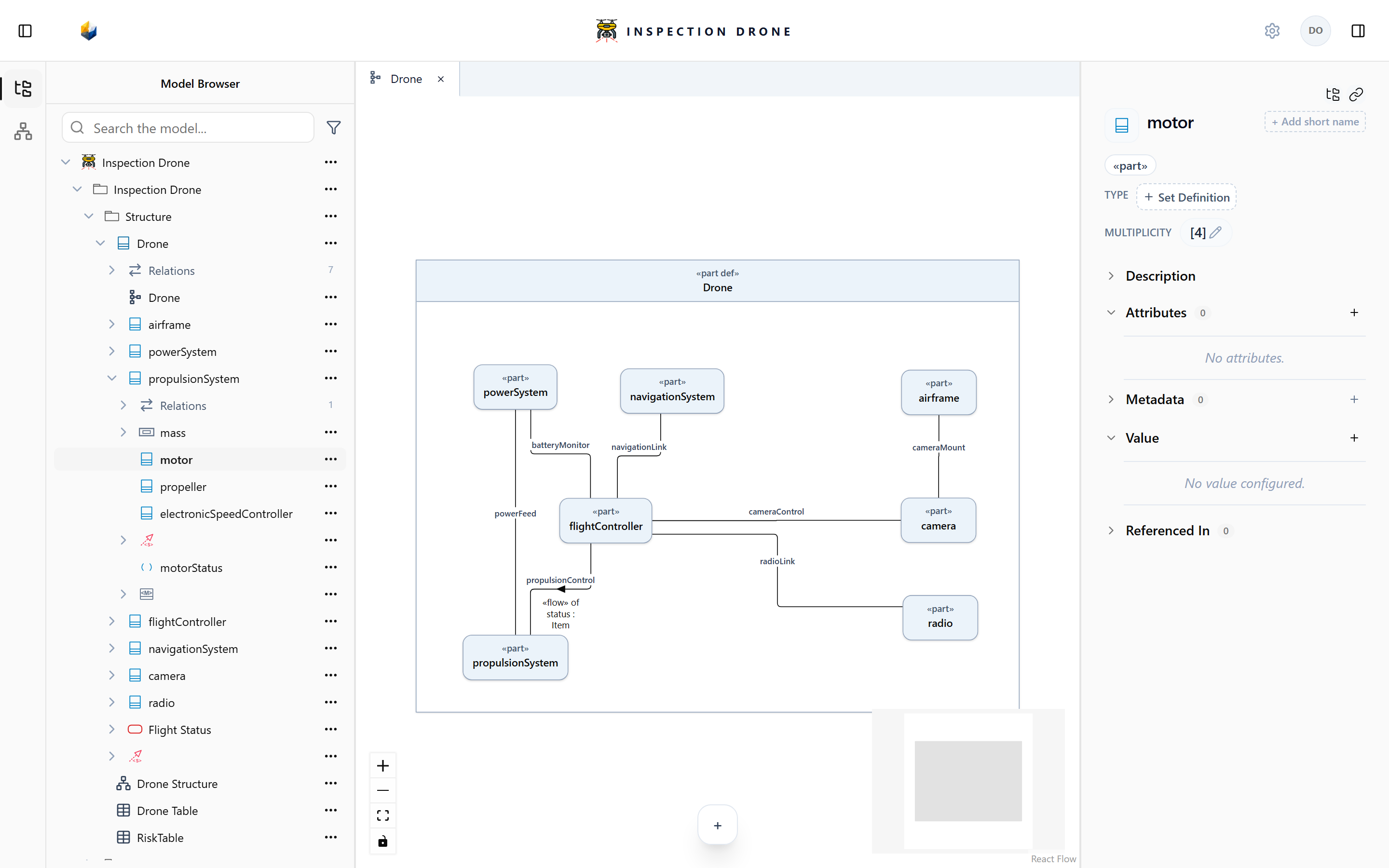
Choose Model Browser in the left activity rail if another panel is open. Use the sidebar toggles to reopen collapsed areas.
Find and inspect an element
- Expand your model’s top entry, then the package containing the element you need.
- Expand its owner to reveal nested elements.
- Click an element to show its properties in the inspector.
- Select another element and observe how the inspector changes.
Check: the inspector identifies the selected element. The tree indentation shows its ownership.
Use the Model Browser’s search and type filters when locating an element. Clear them if expected content is hidden.
Close and reopen a view
- Find a view in the Model Browser and double-click it.
- Select a presentation in its editor. The inspector shows that underlying model element.
- Close the editor tab with its close control.
- Double-click the same view in the Model Browser.
Check: its saved content remains. Closing a tab leaves the view and its model elements in place.
A definition and a view can have similar names. Check the icon, kind, and owner when choosing which to inspect or open.
Use Select in model browser in the inspector to locate an element reached through a view. Use Copy link to obtain its workspace link.
Read an element’s description
Select an element and expand Description. If it has documentation, you can read it there. In an editable model, use Add documentation or Edit documentation to explain it.
Selecting another element changes the inspected content; it does not change ownership.
Explore the model as a graph
Double-click the model-level entry at the top of the Model Browser, or use Open Model Graph in its actions menu. This entry sits above the packages containing model content.
Switch between editor tabs to return to an open view. Close tabs you have finished using.
Choose your next task
- Model Browser: create and find elements.
- Diagrams: populate and arrange a view.
- Tables: review and edit elements as rows.
- Connections and interfaces: connect existing elements.