Tables
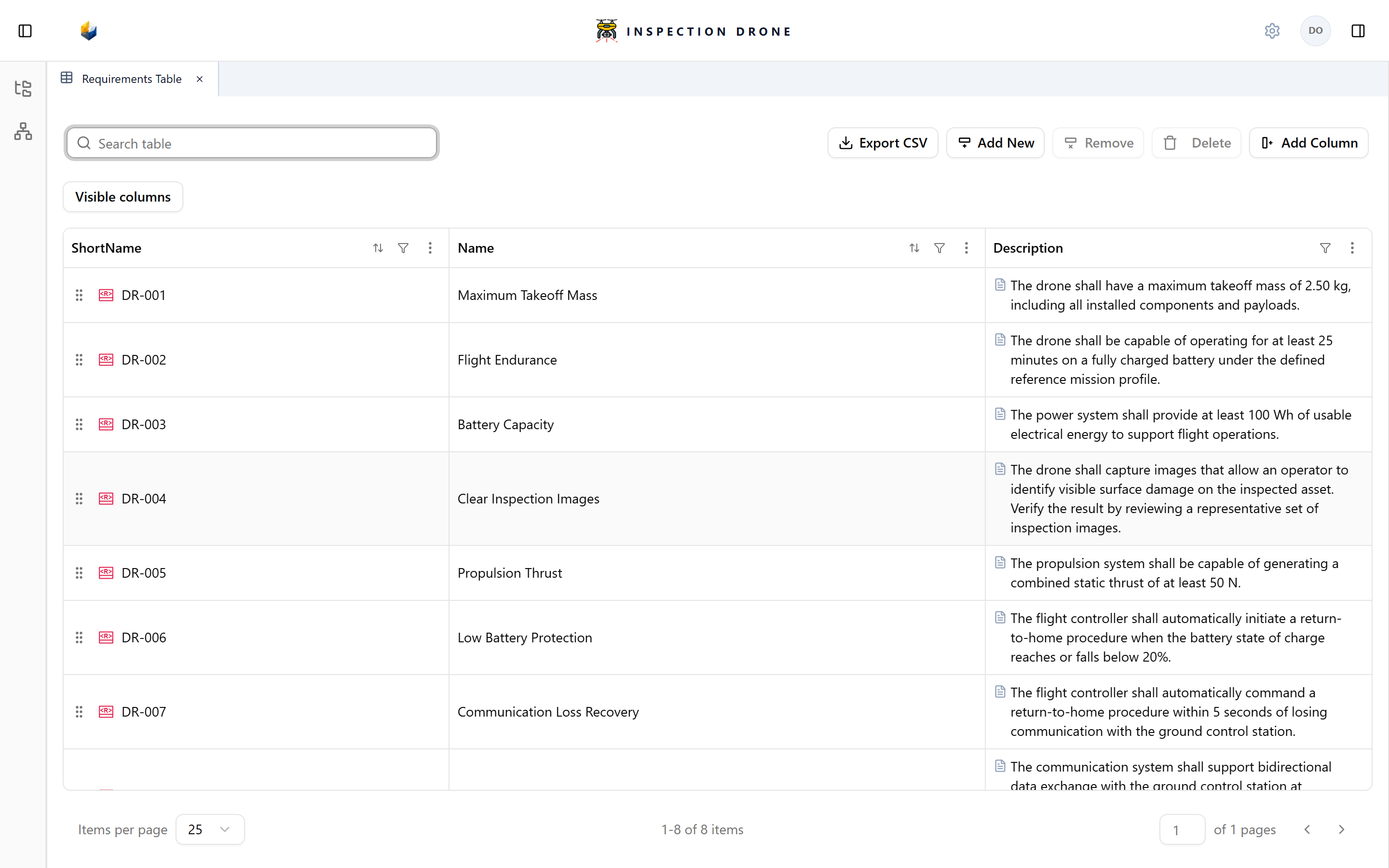
A Tabular view presents model elements as rows and selected properties as columns. Use it to review several elements together, edit their properties, and export a selection.
What you need
Open an editable model. To populate a static table, you need existing model elements; Model Browser explains how to create them.
Create a table
- In the Model Browser, open the actions menu of the package that should own the view.
- Choose Create View → GridView.
- Enter a name describing the table’s purpose and press Enter.
- Drag the elements you want to review from the Model Browser into the table.
Check: each included element appears as a row. Dragging adds an existing element to the view. Add New creates a new model element under the view’s owner.
If GridView is unavailable, check the selected owner and view availability. If no rows appear, add existing elements or check whether search or filters are hiding them.
Choose columns
- Choose Add Column.
- Select Properties for element properties such as Name, ShortName, or Description.
- Search for and select the property you want to display.
Use a column’s actions menu to change or remove that column. Removing a column changes the table’s presentation.
For other column sources and row-selection methods, follow:
- Attributes and units: display attributes, edit values, and choose units.
- Risk metadata: apply metadata and edit its fields.
- Dynamic tables: gather rows automatically using exposures and filters.
Search, sort, and filter
Enter an element name or other supported column value in Search table. Choose Clear search to restore the other rows.
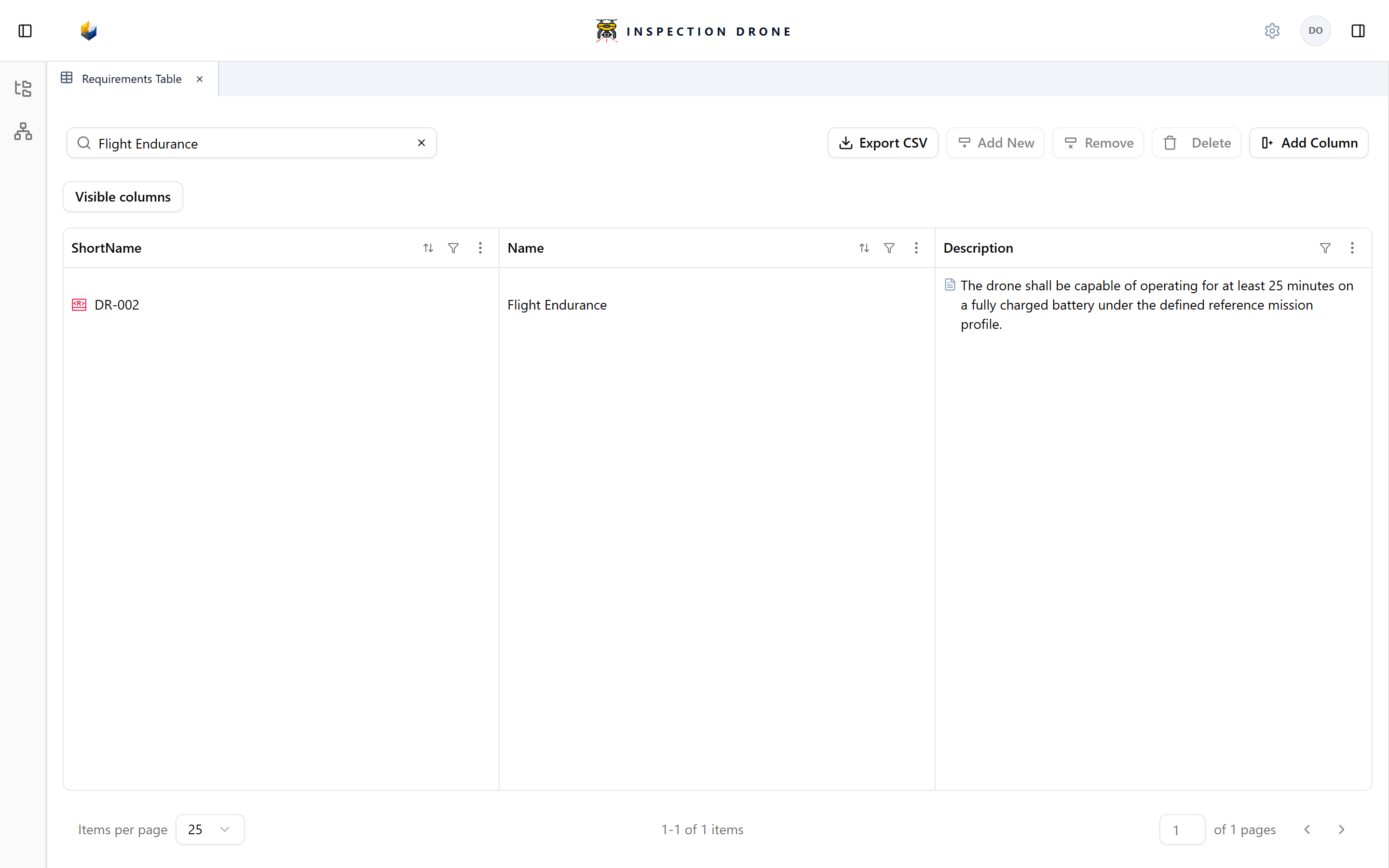
Search can match supported column values, including documentation. Use a column’s filter to restrict a match to that property. The Name filter uses declared element names.
Use a column’s sort control to order values and its filter control to restrict the rows. Clear active filters when expected rows are missing. Pagination controls select the page and items per page.
Check: searching, sorting, and filtering change the rows displayed, while the underlying elements remain in the model.
Edit or remove rows
Where a cell offers an editor, changes update the underlying model element. Select an element to inspect properties that are not shown as columns. The Description cell offers Edit documentation.
In a static table, Remove removes selected rows from this view. Delete deletes the selected model elements. Check the action before confirming it.
Dynamic tables calculate their rows from exposures and filters. Change that configuration to change their membership.
Export a review
Choose Export CSV. The export follows the selected columns and current search and filters. Clear them first if you want all rows included by the view.
Check: the downloaded CSV contains the intended columns and selection. The illustrative CSV shows an export from the screenshot example.