
States
A state describes an operating situation. A transition describes movement between states. A StateTransitionView presents these elements and their relationships.
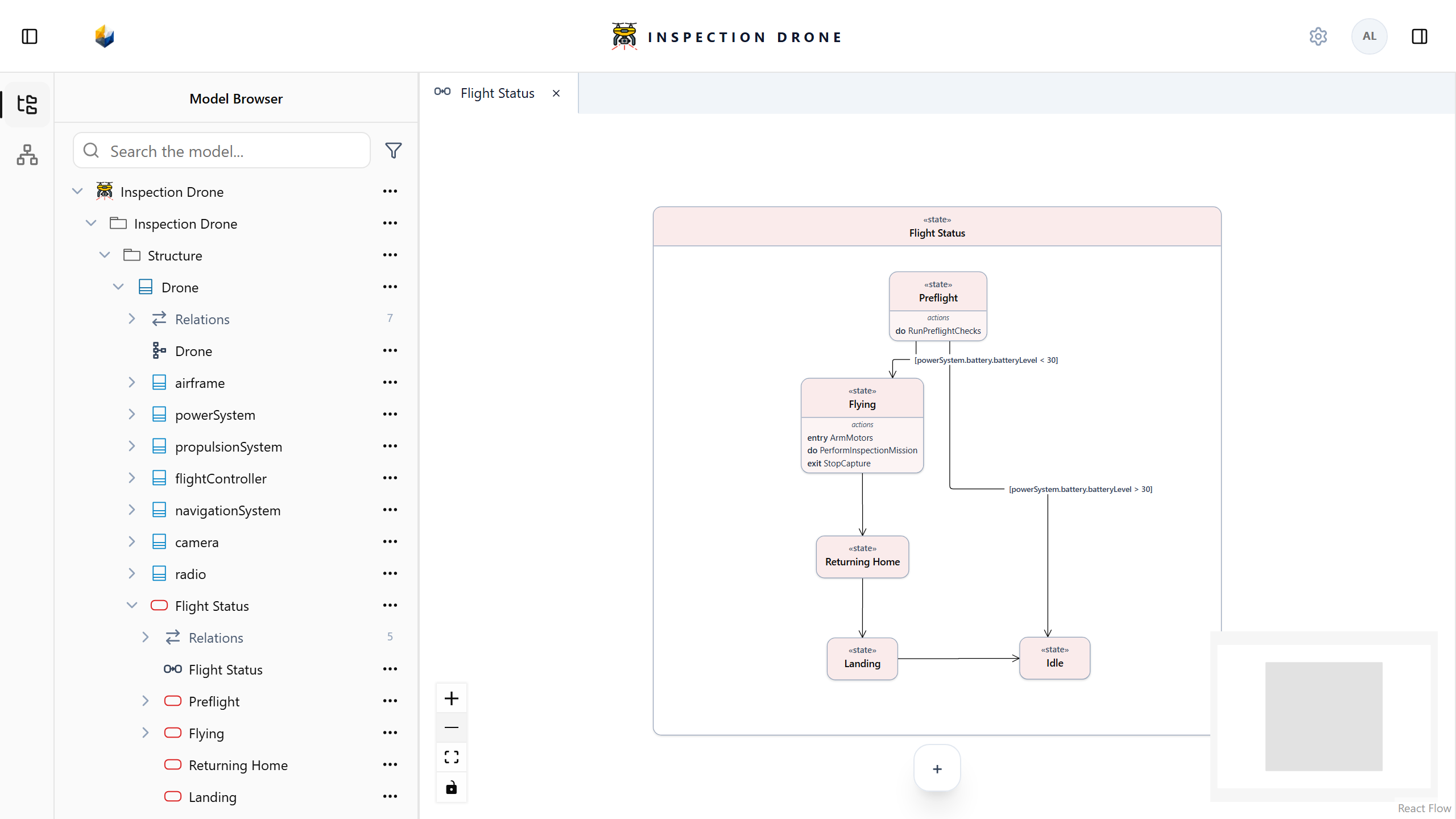
What you need
Use an editable model with a part or system definition that will own the state usage. Parts and Build your first model explain how to prepare structural elements.
A numeric guard needs a numeric attribute accessible from the transition’s context. State-action assignments need action definitions. The steps below explain how to prepare both.
1. Create the states and their view
- Open the owning part or system definition’s menu and choose Create Element → state.
- Name this enclosing state usage.
- From its menu, choose Create Element → state for each operating state you want to describe.
- From the enclosing state’s menu, choose Create View → StateTransitionView, name the view, and open it.
- Drag the child states from the Model Browser into the frame.
Check: the child states belong to the enclosing state and appear inside its view.
If a state or view kind is unavailable, check which owner’s menu you opened. Use the enclosing state for its child states and view. See Create a view for library availability.
2. Connect the states
- Choose Select and click the source state.
- Choose transition in the small toolbar beside it.
- Click the existing target state.
- Repeat for the other transitions your behavior requires.
- Click a transition line to inspect its source and target.
Check: the arrows connect the intended states. The line’s inspector has Transition Behavior, including Trigger, Guard, and Effect. If you see State Actions, select the transition line rather than the state.
If transition is absent, check that the selected node is a state in a static StateTransitionView and that the model is editable.
3. Prepare the value used by the guard
Use an existing numeric attribute if appropriate. To create one:
- Select the part or definition that should own the value.
- Expand Attributes and choose Create attribute.
- Enter a name for the measured or recorded property.
- Choose Choose type, select Real, keep a single-value multiplicity, and choose Create.
Check: the attribute appears with the Real type. Its ownership determines the name or path needed from the transition’s context. An initial value is not required to record a guard.
If Create attribute is absent, check the selected element and editability. If Real is unavailable, check standard-library loading.
4. Enter a guard expression
- Select the transition whose condition you want to define.
- In Transition Behavior, choose Set transition guard, or Replace transition guard for an existing guard.
- Choose Expression. A complex existing guard may open the expression editor directly.
- In SysML source, enter a Boolean expression using the actual names and ownership paths in your model. For a numeric attribute named level that is accessible in this context,
level < 30illustrates a comparison. - Enter only the expression. The editor supplies the
ifkeyword, and the Diagram supplies brackets. - Wait for checking, resolve blocking diagnostics, then choose Save expression.
Check: selecting the line again shows the saved Guard summary and a bracketed label. Choose a condition meaningful for that transition. Recording it does not execute the state model or update the referenced attribute.
For a guard referring to one Boolean attribute, use the guided Boolean condition picker under Boolean features, then choose Set guard or Replace. Numeric comparisons use Expression.
If Save expression is disabled, read the diagnostics, check feature names, types, and paths, and avoid adding another if or surrounding brackets. If the editing context changed, retain any text you need and use Refresh context before checking again.
5. Associate work with a state
Prepare action definitions for the work needed on entry, during the state, or on exit. Create them with Create Element → action def from a package’s menu, or use compatible existing definitions. See Actions.
- Select the state and expand State Actions.
- Choose Set entry action, then Existing action.
- Search for and select the intended action definition, then choose Set action.
- Use Set do action and Set exit action for the other roles as needed.
Check: the state lists your selected definitions in the corresponding entry, do, and exit rows. Use the Replace control to change an assignment.
If an action is missing, check its definition kind and availability. If State Actions is absent, select the state itself rather than a transition or view.
An enumeration supplies named property choices; states and transitions describe behavior over time. See Requirements for conditions the system should meet.

