Table attributes and units
Attribute columns let you review and edit a model property across several elements. Choose the attribute you need, then edit its value for each row.
What you need
Open an editable table containing the elements you want to edit. The attribute must already be declared in a definition used by those elements. Adding a column does not create the declaration or assign the definition to the rows.
If needed, prepare a shared definition, create an attribute, and assign the definition to the relevant elements. For a quantity with units, choose a compatible quantity type, such as MassValue for mass.
Add an attribute column
- Choose Add Column in the table toolbar.
- Select Attributes.
- Expand the definition that owns the attribute you want to display. You can also search for the definition or attribute by name.
- Select the attribute’s name to add its column. Use the arrow beside a structured attribute when you want to explore and select a nested field instead.
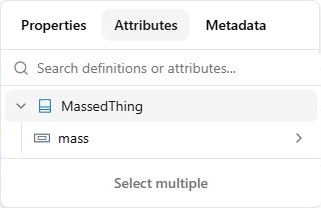
Check: the new column shows the selected attribute for each applicable row, including local redefinitions. A row that does not use the relevant definition may not resolve that attribute.
Edit an attribute value
- Find the row for the element you want to edit. Use Search table if needed.
- Click the numeric value in the attribute’s cell.
- Enter the value required for that element and press Enter. Leaving the input also commits a valid edit; Escape cancels an unsaved change.
- Wait for the save to finish and check the displayed value.
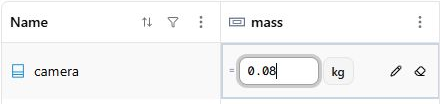
Check: select that same element in the Model Browser and expand Attributes in its inspector. The saved value matches the table. Other views displaying that property use the same model value.
For an unset attribute, use its Set value control. If the cell offers a Redefine … locally action, use it to create a value specific to that element before editing. This preserves the shared definition’s value.
Change a unit
- In a numeric attribute cell, enter the magnitude you want to record.
- Before leaving the cell, open the unit selector beside the number.
- Search Search compatible units and select the required unit. Check its symbol and library when several results look similar.
- Wait for the number and unit to save together.
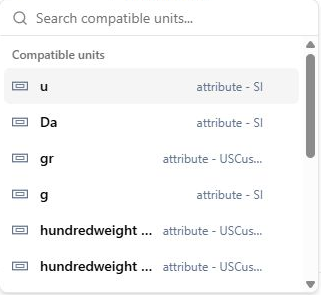
Check: the cell and the element inspector show the entered number with the selected unit.
Changing the unit does not convert the number automatically. If you want to express the same quantity in another unit, enter its equivalent magnitude too. For example, 0.1 kg is 100 g; changing only the unit on 0.1 kg would record 0.1 g.
If an option is missing
- Definition or attribute absent from the picker: select Attributes, clear the search, and check that the definition owns the attribute declaration. Use that declaration rather than searching for each row’s local redefinition.
- A row cannot resolve the attribute: inspect its definition assignment. Adding a column does not assign a definition to a row’s element.
- No number editor: the value may be inherited, an expression, or read-only. Use the offered local-redefinition or Edit value control where available. Imported or read-only elements cannot be edited here.
- No compatible units: check the attribute’s quantity type and that the required libraries loaded. See the installation checks.
- The source declaration is unavailable: check that the definition or dependency supplying the column is present. Resolve that dependency, then recreate the column from an available declaration if necessary.
- A save is rejected: correct the reported error. If another edit changed the value, keep any text you need, cancel the draft, and reopen the cell to load its current value.
See Table metadata for information applied through metadata definitions.